Audience: Teachers
Use Messages to communicate with students, families, and colleagues. You can send:
- Announcements for one-way communication (reminders, newsletters, classroom updates)
- Conversations for two-way messaging with individuals or groups
- Messages with photos, videos, files, voice recordings, links, and drawings
Note: Your school or district administrator controls who can send and receive Messages. If you can't access a feature described below, contact your administrator.
Choose an Announcement or Conversation
| Use Announcements when... | Use Conversations when... |
|---|---|
| Sending reminders | Discussing student progress |
| Sharing newsletters | Asking or answering questions |
| Posting classroom updates | Messaging individuals or groups |
| You don't need replies | You want two-way communication |
| Recipients cannot see one another. | Participants can see everyone in the thread and reply. |
Create a Message
- Open Messages.
- Select New Announcement or New Conversation
- Choose recipients:
- Individual people
- Multiple people
- Add Classes to message an entire class - Type your message.
- Select the + sign to add attachments. (optional)
- The Creative Tools view will appear, and you'll be able to upload a file, attach a photo or video, write a note, share a link, or use the Creative Canvas to draw and annotate a picture!
- Schedule the message (Seesaw subscriptions only).
- Select Send.
- After you've sent your message, you can see who has viewed it.
Shortcuts for using Messages
Message families from Journal
Message connected families and students from the student list in the Journal Tab (web only).
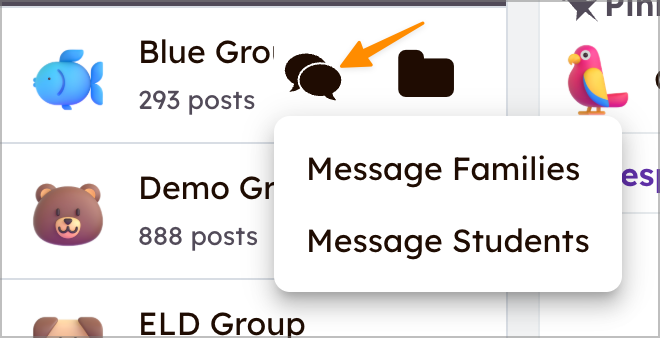
Share Activities
Share Activity with Students
From the Journal Tab or Seesaw Library, tap [...] on an activity and select Get Student Link.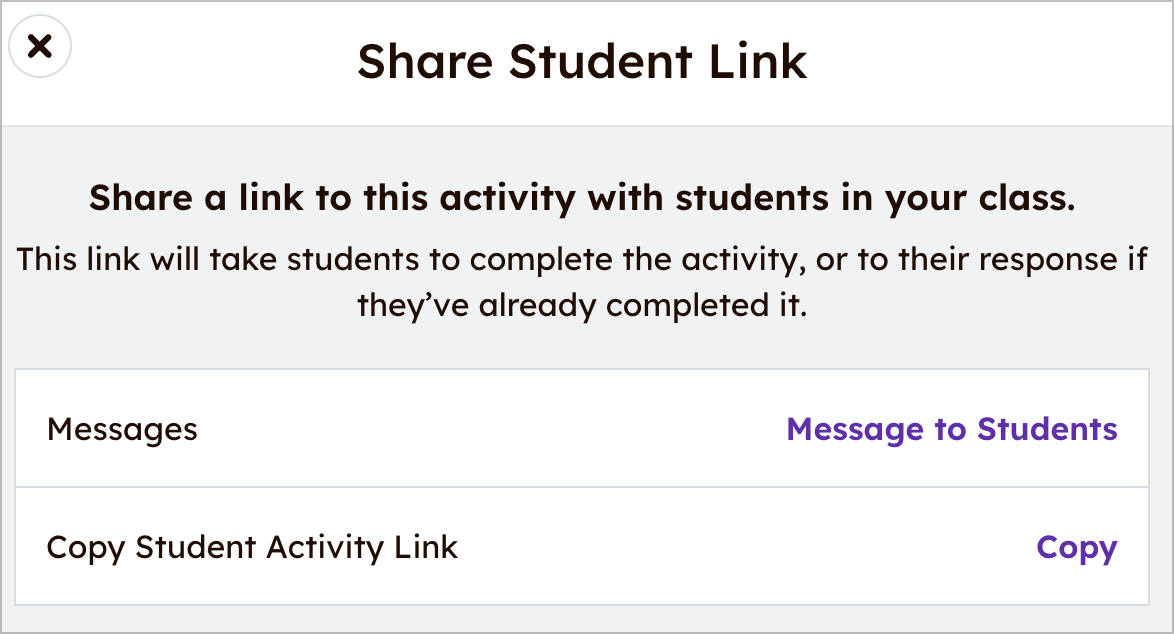
Share Activity with Teachers
From the Journal Tab or Seesaw Library, tap [...] on an activity and select Share Activity with Teachers.
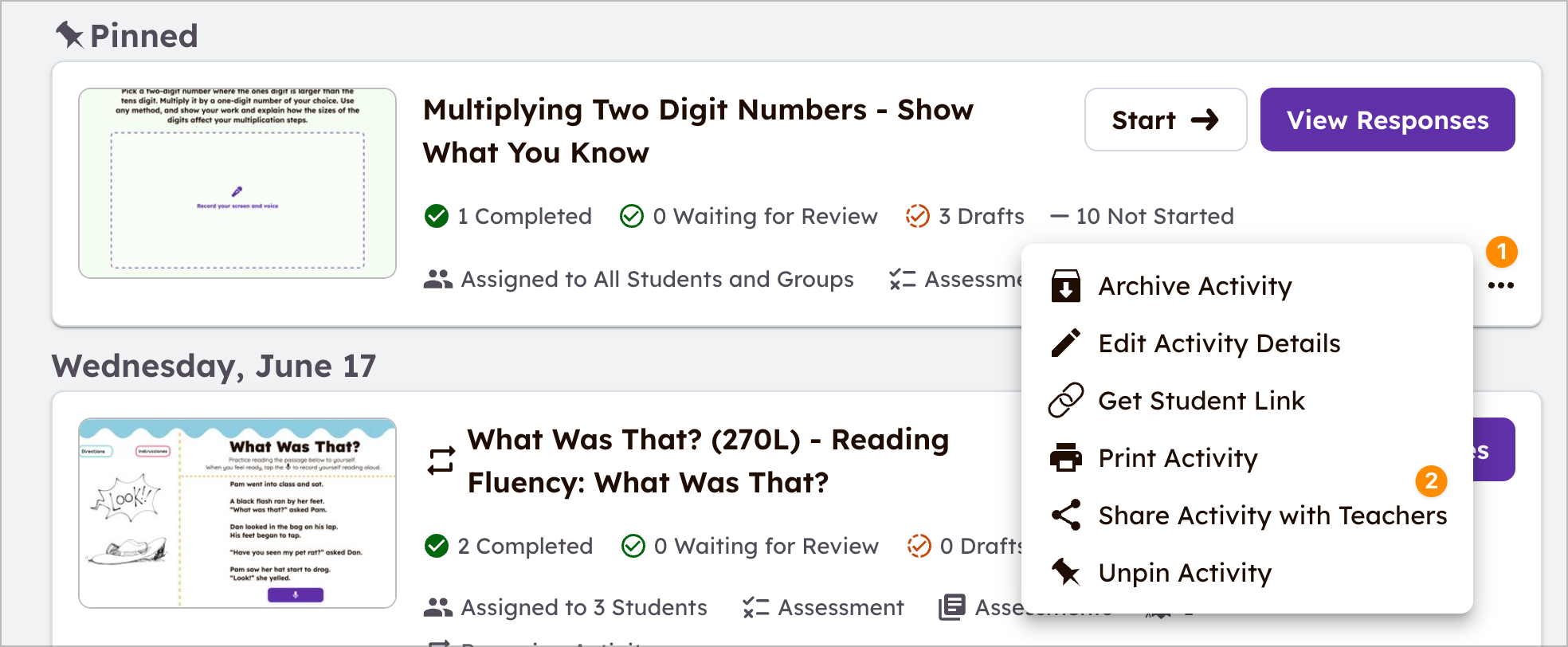
From the Journal Tab or Seesaw Library, tap [...] on an activity and select Get Student Link.
Share Activity with Teachers
From the Journal Tab or Seesaw Library, tap [...] on an activity and select Share Activity with Teachers.
Send Gradebook progress
(Seesaw subscriptions only)
Select a student from the Gradebook. Select Message to Family.
A new conversation will open with the progress report summary pre-populated.